
Our booking platform includes a tool that lets you quickly copy a booking to other days of the week when you know you’ll be travelling at the same time. Here’s how to use it.
First, you’ll need an active Travel Pass or Ride Bundle to access this feature. Once your pass is active, it will appear on the rider app homepage or under “My rides” on the web app. Select your pass to see the list of days you can book seats for. Unless your Travel Pass has “automated booking” enabled (usually only for school services), you’ll need to choose the specific dates and times you want to travel.
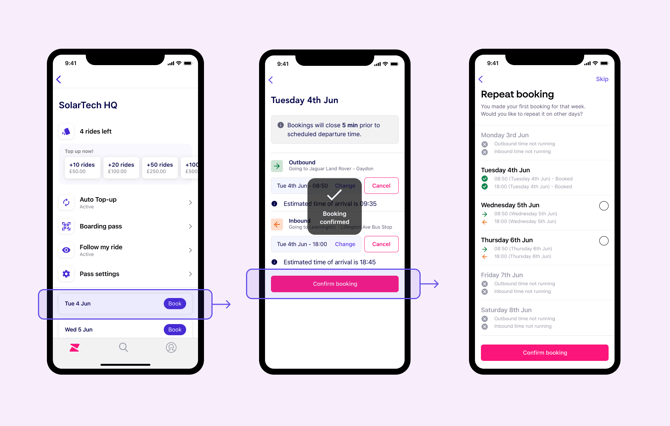
- Tap "Book" on the days of your choice. If you can't see any dates yet, or some days seem to be missing, this may be because the trips haven't been scheduled yet, or they aren't running on those days. Please try again later once the days are available to book or contact our support team for further information.
- Trips may also be missing if you're attempting to use your pass or credits on bookings pages from a previous academic year. Credits and passes don't normally carry over to the next year, so check which booking page that you're on.
- A screen will open showing options to book your Outbound and Inbound journeys (if you're using a one-way Travel Pass, you will only see a single leg).
- If the selected trip is already full, you will see an alert. If this happens, try selecting another time or try again later (in case someone else cancels their booking).
- When you continue, your booking will be confirmed, and a screen will open to allow you to "repeat" this booking on other days of the week. This works like a copy/paste tool to quickly book the same time on multiple days. If any trips are already sold out, you will see a message under that date. You can skip this step or select more days to book.
- When you confirm, you will be booked on all selected dates (if you’re using a Ride bundle, the corresponding number of ride credits will be deducted based on the total number of trips booked).
- Finally, review your bookings to make sure everything is correct.