
What is Auto-booking or Travel Preferences?
Auto-booking is a feature on the booking page that allows you to set your child’s regular travel days in advance. Once your preferences are saved, the system will automatically book the required trips each week, so you don’t need to place bookings manually.
This feature is designed for regular weekly travel patterns. If your schedule changes week to week, manual booking may be more suitable.
How do I set up my travel preferences?
Step 1: Access your booking page via the direct link in your invite email.
Step 2: Select your stop combination from the list on the booking page.
Step 3: Select the number of passes required
Step 4: Select the travel pass that best suits your needs.
Step 4: Enter the rider details (if more than one, add these here)
Step 5: Enter your travel pass preference
Step 6: Continue to checkout and complete your purchase.
Tip - All days must be completed. On any days that you do not wish to travel, you must select "Not travelling" to continue. This is from Monday to Sunday.
Please note - Round-trip options will not be visible for One-way passes.
Please see the image below as an example (this will be the same experience on both App and Web-app versions) -
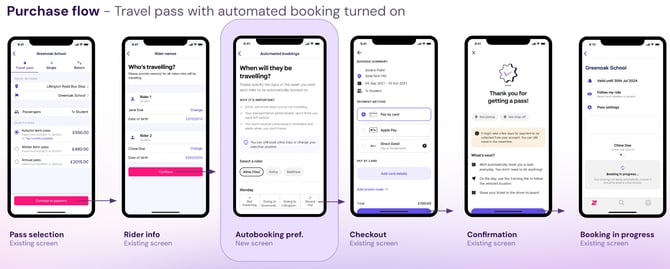
Please note that your purchase must be completed within 7 minutes. If this time is exceeded, the session will expire, and an error message may appear. If this occurs, you will need to start the purchase process again by refreshing the App or Web-app and returning to the start.
What happens after I purchase?
Once you have completed your purchase, you will receive a confirmation email, and your pass will be visible in your Zeelo account.
At this stage, your booking will not show. This is because the automation will run every Sunday at 1 am and place your bookings for the following week.
Please note: If your pass is not due to start until a future date, the booking will be placed on the Monday prior to that date. So please do not worry if your bookings are not showing in advance, this is expected.
For example, if your pass starts on Tuesday, the 1st of September, then the bookings will appear in your account the week prior, on Sunday, the 23rd of August, shortly after 1 am.
Updating your travel preferences?
If your schedule changes, you can update your travel preferences in your Travel Pass settings.
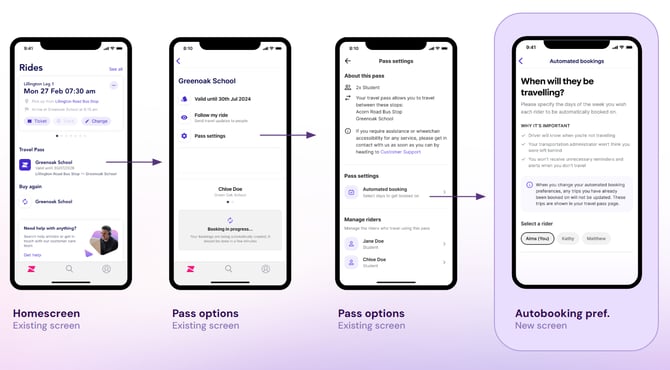
When editing your preferences, please update them across all days for each rider. On any days you do not wish to travel, please make sure you select "Not travelling" in order to continue.
Important: Any changes you make to your travel preferences will update the following Sunday at 1 am and will not update in real time. This means any current bookings you have will not be amended. If you need any changes made to your immediate trips, you are able to cancel these within your profile in the "my rides" section or reach out to our Team for further assistance here
When Auto-booking may not be suitable
Auto-booking works best for regular weekly travel patterns.
If your travel schedule changes frequently, it may be easier to:
-
Book trips manually, or
-
Cancel individual journeys when plans change.
How will I know that the bookings have been processed?
All confirmed trips appear in the Bookings section of the app or web portal in the “My Rides” section.
⚠️Please note that booking will only show from the pass start date.
Does auto-booking work with all ticket types?
Auto-booking only works with travel passes that have automated booking enabled, such as:
- Annual passes
- Term passes
- One-way travel passes
Auto-booking does not work with:
- Single and Return tickets
- Ride bundles
For more information on Travel preferences, please visit our FAQ guide here