
1. A new web address: ridezeelo.com
We now have one booking web-app for riders in the UK, Ireland and the US: ridezeelo.com.
- If you go to app.zeelo.co, app.zeelo.ie or app.zeelo.us, you'll be taken to ridezeelo.com automatically.
- Links to your program page in older emails still work.
- Tip: if you've bookmarked the old address, update your bookmark to ridezeelo.com.
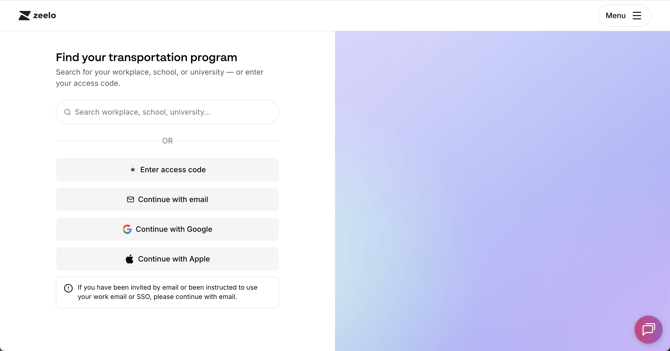
2. Finding your passes and bookings
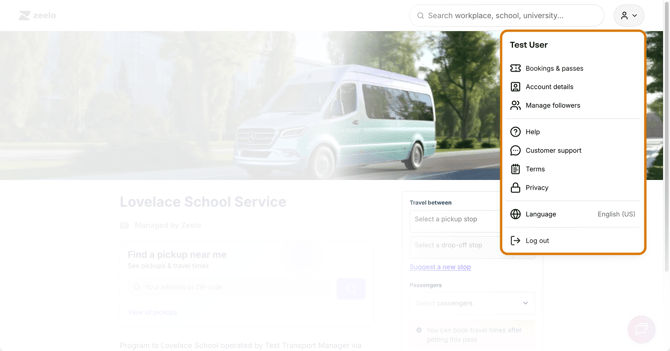
The "My rides" button is replaced by a comprehensive account menu. Your passes and bookings still live on the home screen, which opens as soon as you log in and greets you with "Welcome back".
To get back to your home screen at any time:
- Select the account menu in the top-right corner of the screen.
- Select Bookings & passes.
You can also select the Zeelo logo in the top-left corner.
Your home screen is mostly unchanged and shows:
- Manage your passes: your Travel Passes and Ride bundles. Select a pass to see its timetable, boarding pass (QR code), followers and settings.
- Top up now: quick options to add more rides to your Ride bundle.
- Upcoming rides: your booked trips. Select a booking to change or cancel it.
- Completed rides: your past trips.
- Need to book on a different route?: a new shortcut to find another program or route, for example if your child travels from two homes.
3. New: your route name on every booking
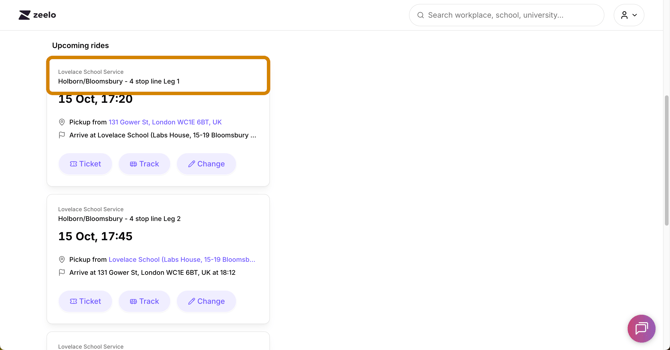
Each booking on your home screen now shows the program name and the route name (for example, "Route 4" or "Late Route 1").
Why this helps: the route name is usually displayed inside the vehicle, especially on Education programs. When several vehicles are waiting at the same pick-up point, such as a school car park, the route name tells you which one to board.
For parents: If your child doesn't have their own phone to consult the route name, check the route name on your child's booking and share it with them before they travel. If they travel on different routes on different days, check each booking, as the route name may change.
4. Finding your program and logging in
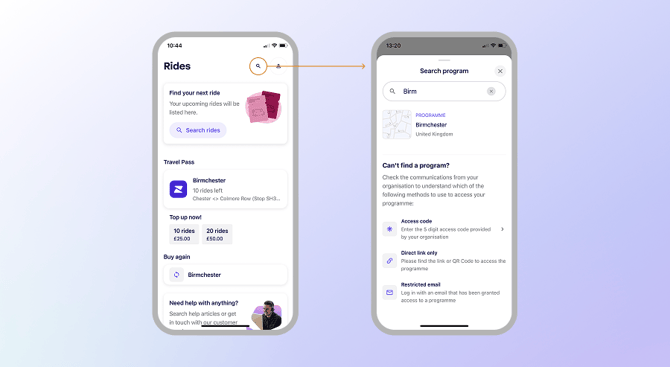
The Search has a new look but still works in the same way; there are three ways to access your program:
- Search: type your school or workplace name into the search bar. Once you're logged in, the search bar stays at the top of every page.
- Enter access code: if your organisation gave you a 5-character code, enter it here.
- Log in: with your email, Google or Apple account, or your organisation's single sign-on (enter your work email and you'll be redirected).
- If you can't find your program in the search or after logging in, your school or employer may have made the program private, so check their emails for a direct link or access code.
5. Used to log in with Facebook?
Facebook login is no longer available, but your account, passes and bookings are safe. To get back in:
- Select Continue with email.
- Enter the email address linked to your Facebook account.
- Select Forgotten password and follow the link we email you to create a password.
- Log in with your email and new password.
Not sure which email you used? Check your inbox for past Zeelo booking confirmations, or contact our Customer Care team.
6. Your account menu
Everything about your account now sits in one menu in the top-right corner.
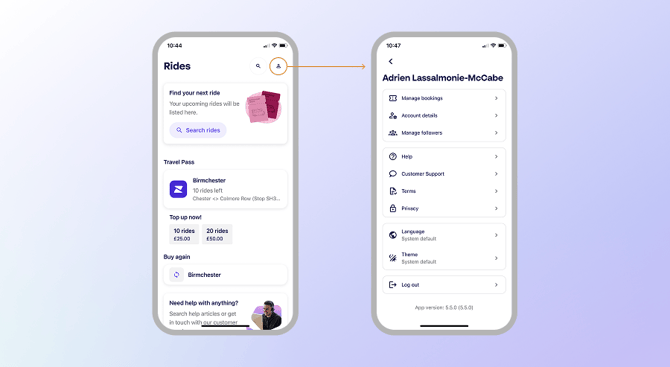
Select it to find:
- Bookings & passes: your home screen, with all your passes and bookings.
- Followers: add up to 3 people (for example, a partner or grandparent) who get journey updates and a live tracking link. This used to be called "Follow my rides". You can also manage the same list of followers from inside each Travel Pass.
- Account details: change your name, email, phone number, password, special assistance needs and cards & badges.
- Language: choose the language for the website.
- Help: opens our Help Centre.
- Download the app: get the Zeelo Rider App, where you can also rate trips and report an issue.
- Terms, Privacy and Cookies: these links have moved here from the bottom of the page.
- Log out.
Written by Adrien L.